
How to Get Posted Purchase Invoice Documents from Business Central in Power Automate
This is one of those things that should be obvious… but absolutely isn’t.
I spent hours this week trying to figure out how to retrieve documents related to Posted Purchase Invoices from Business Central using Power Automate. The official documentation around attachments makes it sound like this isn’t even possible once an invoice is posted — and yet, it is.
So if this has tripped you up too, you’re not alone.
The Problem
When working with the Business Central connector in Power Automate, the documented attachment options are limited. You’ll see references to things like:
Journals
Sales Invoices
Purchase Invoices
But here’s the catch:
Once a Purchase Invoice is posted, the original Purchase Invoice record is deleted and its data is moved to the Posted Purchase Invoice table.
That means:
You can’t directly retrieve attachments from the Posted Purchase Invoice
And there’s very little documentation explaining how to backtrack to the original invoice document
This becomes a real problem when you’re working with historical data and need access to those documents.
Assumptions / Prerequisites
This process assumes:
You already know how to create a custom API page in Business Central
You’ve deployed that API as an extension
Your extension exposes the Posted Purchase Invoice table, including the Draft (original) Purchase Invoice System ID
I’ll cover how to build these custom extensions in a future post.
The Key Insight
Even though the Purchase Invoice record is deleted, Business Central still allows you to retrieve the PDF document using the Draft Purchase Invoice System ID that exists on the Posted Purchase Invoice.
That ID is the bridge.
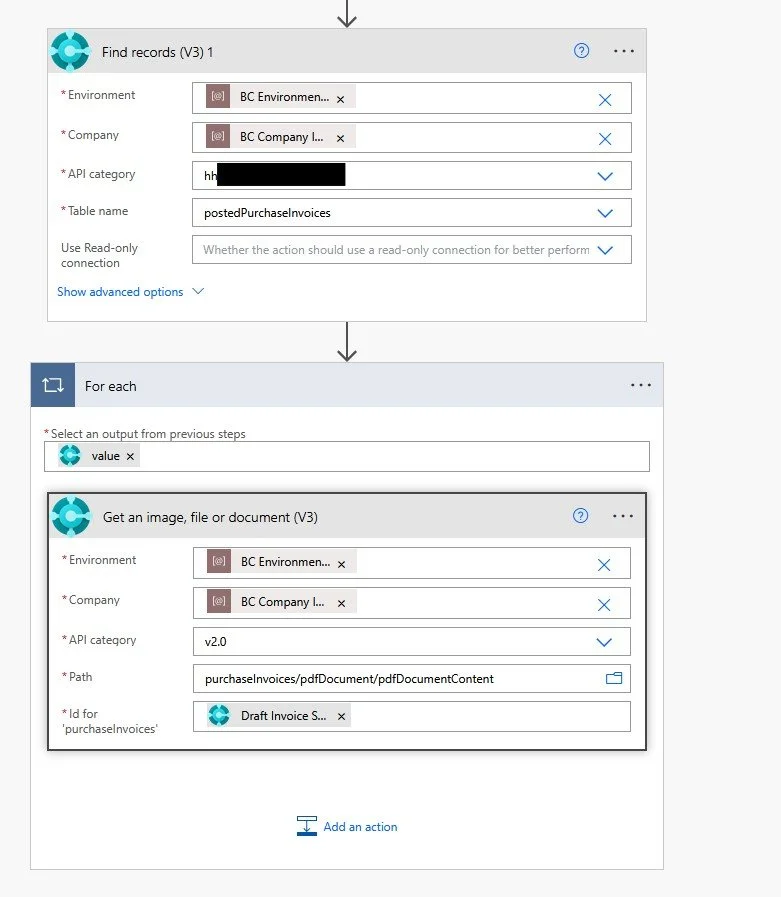
Step-by-Step: Retrieve the Document
Locate the Posted Purchase Invoice
Use Find records or Get a record in Business Central (via your custom API).Add the “Get an image, file, or document” action
This is the standard Business Central connector action in Power Automate.Configure the Path - purchaseInvoices/pdfDocument/pdfDocumentContent
Set the ID
For the
purchaseInvoicesID, use the Draft Purchase Invoice System IDThis value comes from the Posted Purchase Invoice record exposed by your custom API
Use the Output
The action returns content bytes
You can save the PDF to SharePoint, Azure Blob Storage, email it, or store it wherever you need
Why This Matters
This isn’t a long or complicated process — but without knowing that Draft Invoice System ID is the key, it feels impossible.
I couldn’t find anything clearly documented that explained this end-to-end, so hopefully this saves you the same frustration.
Short post, big time saver. If this helps even one person avoid losing an afternoon to this… mission accomplished 😊
